Felix Krause
Co-Founder of contextsdk.com
Founder of fastlane.tools

While I leverage AI for my work, all my blog posts are handcrafted.
Managing Personal Projects with Agents
In my last blog post about OpenClaw I wrote about my growing setup of some basic day-to-day automation tasks.
Today I want to show you how OpenClaw or similar AI agents can help you manage your personal projects. In our case it’s our home construction project and our wedding planning.
The problem
Quick Access
While being onsite (on the construction site, the wedding venue, a vendor’s office) you quickly want to access
- the latest plans
- the timeline
- the budget agreed
- the land register record
- the drawing showing the exact location of the canal
In reality that often involved a search across Google Drive, WhatsApp messages (1:1 and groups), notes and emails, while also making sure you’re accessing the most recent file
Filing System
Even though I’m an organised person, manually filing documents in Google Drive is miserable and a big time sink. Requirements in the folder structure and the types of files and folders to store will change over the course of the project. Also, the Google Drive iOS app is slow, and search doesn’t work reliably.
The solution
Using Notes
The fastest and easiest way to find & access documents, especially on-the-go, is to have a simple, well-structured note available, linking to the source of truths.
As security of AI agents is a big topic, it’s highly recommended to not use your Apple ID on the machine your agent runs on. Mainly because once a device is logged into your Apple ID, it can remotely lock or wipe your other devices, as well as access sensitive data from your account.
Hence, the requirements for a good note-taking app for this use-case looked like this:
| Note App | Works offline | Markdown Support | Fast Search | Syncs without Apple ID |
|---|---|---|---|---|
| Apple Notes | ✅ | 🚫 | 🚫 | 🚫 |
| Bear Notes | ✅ | ✅ | ✅ | 🚫 |
| Obsidian | ✅ | ✅ | ✅ | ✅ |
By paying a reasonable amount of money for the Obsidian sync feature, I can have a safe and reliable bridge between my agent and me.
I also evaluated other note taking apps, with many lacking offline mode, native markdown support, (edit) access to the underlying files, fast sync and a decent iOS and Mac app.
Topic-specific Notes
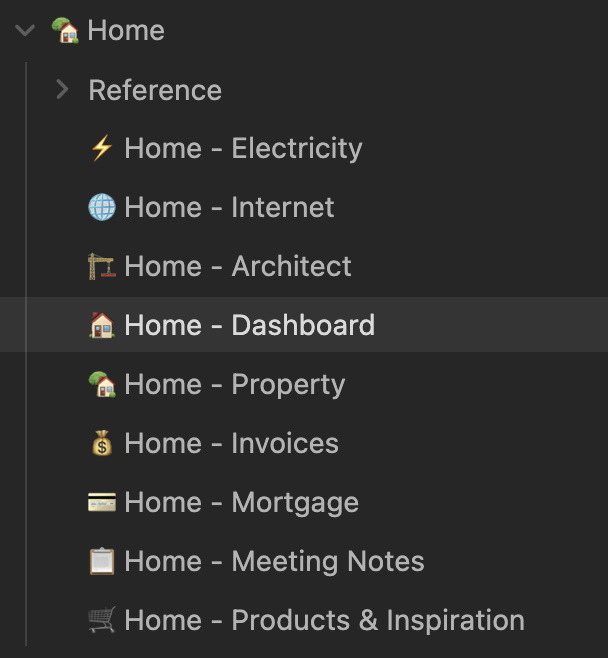
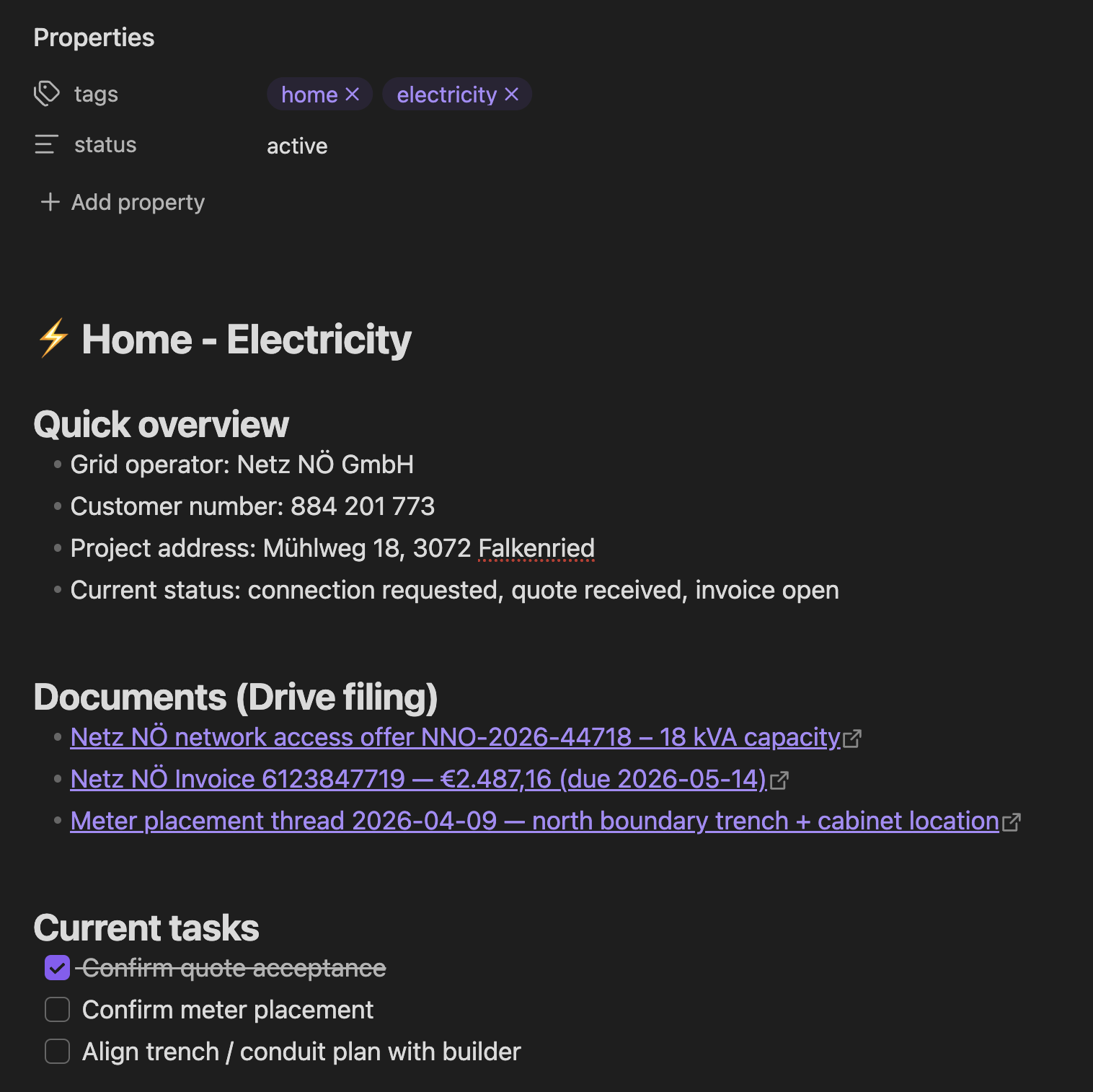
Depending on the type of project, you may want to separate the generated notes by topics. All files are automatically kept up-to-date by the agent, referencing related notes, highlight next action items, etc.
For our house construction project, it looks roughly like this:
|
|
Note: All numbers, names, addresses or similar details on the screenshots are fake.
You can see: The links themselves already include highly useful info, like the total amount, vendor name, and invoice number. Most of the times, you likely don’t even need to open the PDF to get the info you’re looking for.
Storing Project Updates
Over the course of your project, you will naturally get new information & documents from various people and channels.
- If I get a doc via WhatsApp, I forward it to my Telegram bot without comment - it automatically knows what to do by reading the PDF
- If I get details via email, I add the
Homelabel, which gets parsed by my bot overnight
The agent then does the following:
- Check if there is an existing version of the doc on Google Drive
- Upload the new file onto Google Drive at the right folder (or create a new folder if useful)
- If a previous file was there, move that into the Archive (my bot has the instructions to never overwrite or delete a file)
- Go through all relevant Obsidian notes to
- add or update the link to the newly uploaded file
- add any useful info that the bot extracted from the content of the file (e.g. amounts, tech specs, etc.)
I designed the flow like this on purpose: I wanted to manually label or forward the info I’m getting to reduce prompt injection surface area (bot only processes messages I’ve “approved”) and to only store info I want it to store and reduce false positives that may be included.
Google Drive Folder Structure
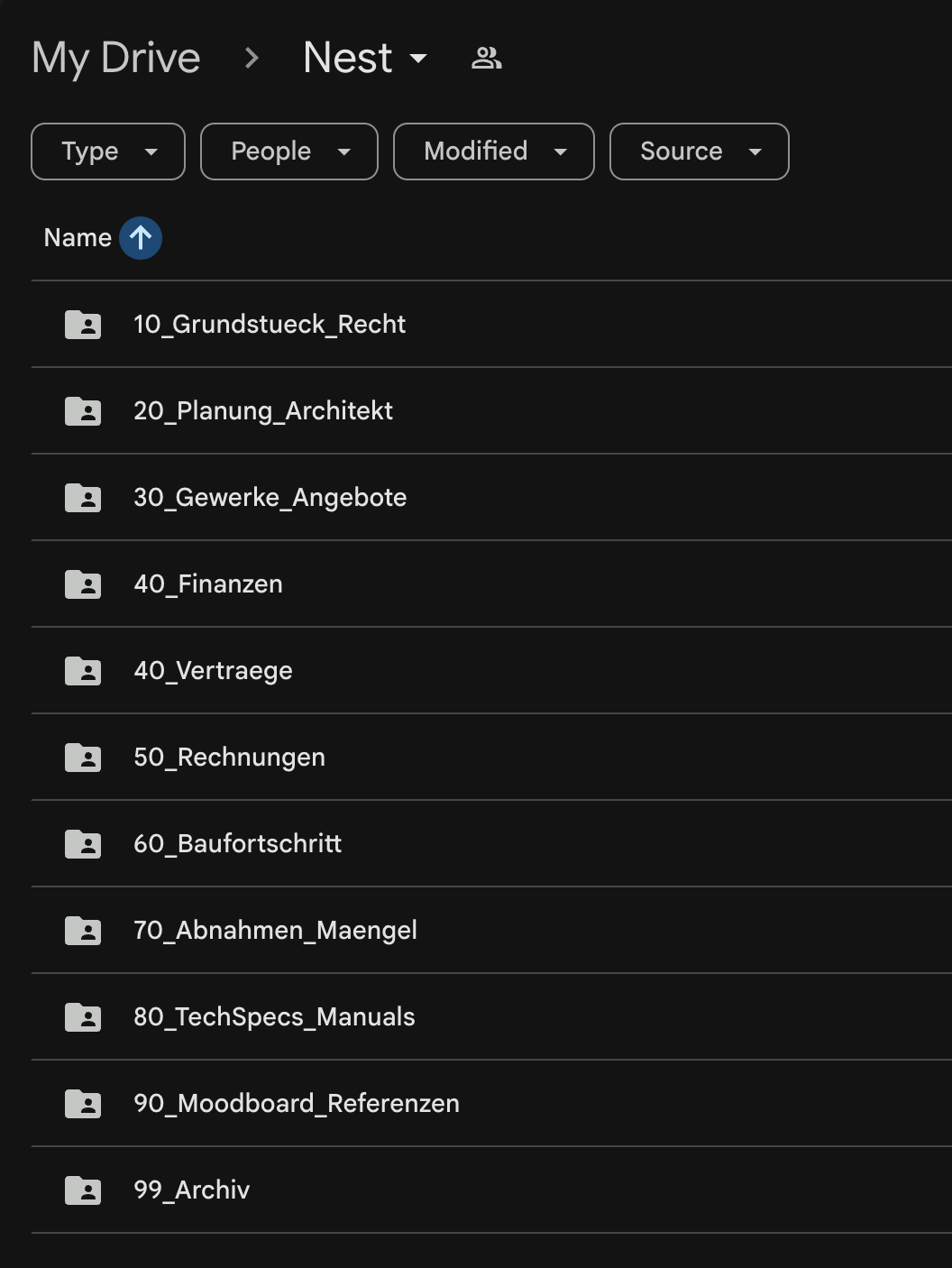
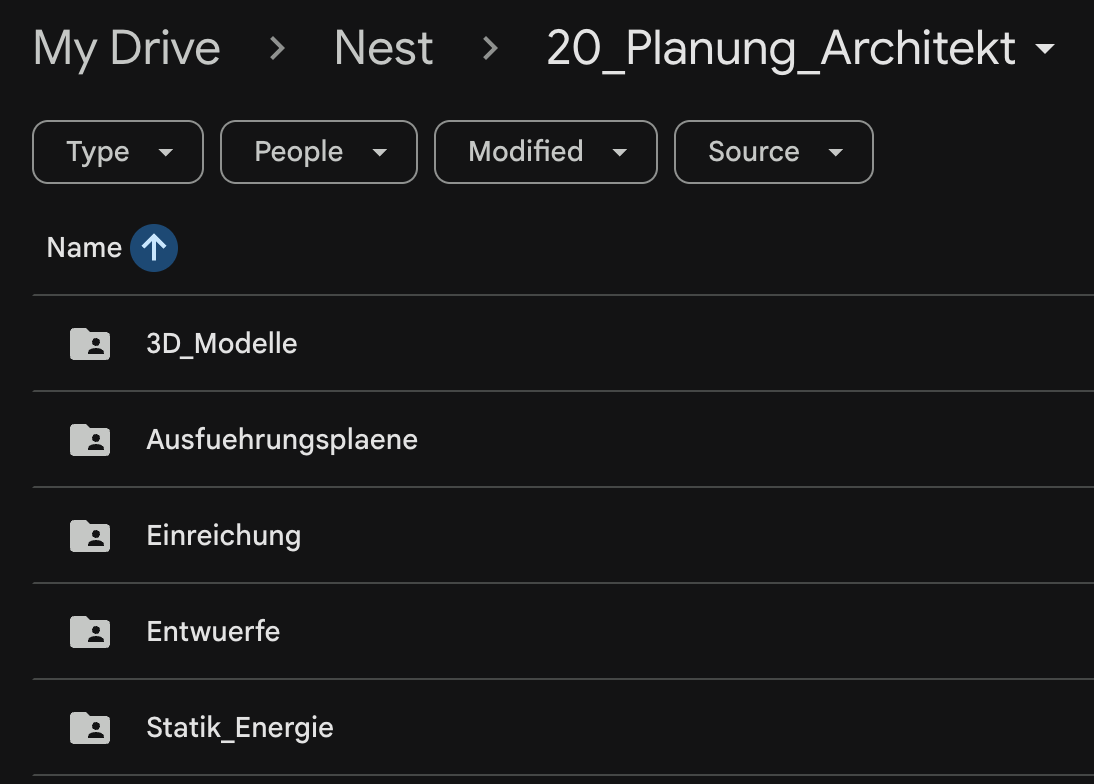
Through the pipeline described above, the result is a very clean, and structured Google Drive folder. Day to day, you don’t usually need to open it anymore anyway, but still a big upgrade.
|
|
Note: For security reasons, I don’t want to grant my agent any type of Google auth for my main account. The easiest solution is to create a second Google account, which you grant access to all Google Drive folders that are relevant for its work.
Calendar Management
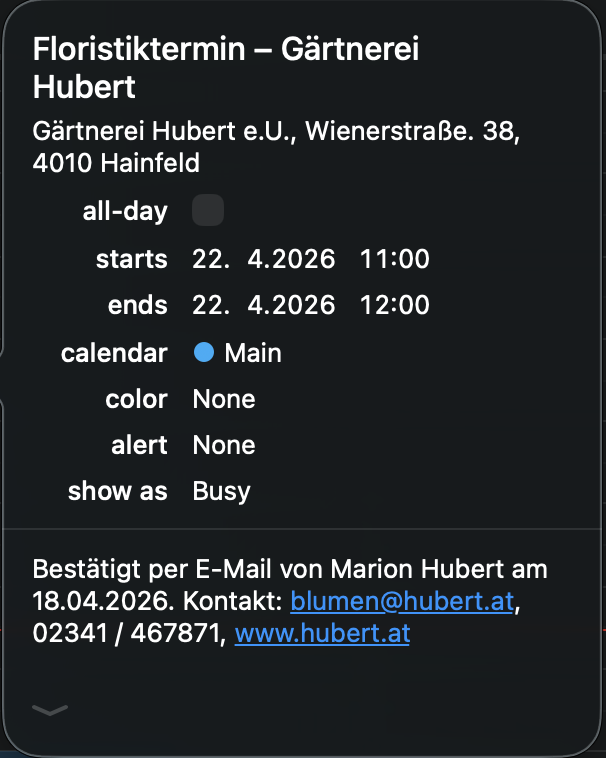
Based on the emails, calendar entries are automatically created with the full details needed for that specific appointment. I leverage a simple CalDAV permission scope of my calendar provider, using a basic CalDAV skill to manage those entries. This also allows the bot to auto-add my fiancée to the shared wedding and home construction appointments.
The agent pro-actively asks to add those entries. For example, this morning we received an email confirmation for an appointment with the florist of our wedding, and the bot asked if it should add it to my calendar.
Other Notes
- Automatic relevance filtering: Only include relevant info and docs. Surface the documents that are important at the current stage of the project
- PDF parsing is worth gold: The agent will read and understand the file’s content and extract the most relevant info. This includes payment amounts, project details, important dates, deadlines, etc.
- Depending on your agent’s memory system, it will also remember some of those learnings in its own memory storage.
- It keeps state (which messages and emails were already processed) to avoid duplicate work or duplicating files
The Tech Details
I won’t share my full SKILL.md for this workflow, as it includes a good amount of personal preferences and details. You can likely get up and running by pointing your agent to this blog post.
For this setup, my agent uses a hybrid approach, both using a separate Google account with limited access:
- Google Drive folder synced locally: Faster access, automatic sync, easy way to get
SHA-256to compare files, fast search - Google Drive/Docs APIs: accessing google files (.gsheet, .gdoc)
Still, I wanted to include a few highlights that will help you get there for your own setup
# Home Construction Document Management 🪺

Automated document management for the house-building project ("Nest").

## Architecture

```
Intake Sources              Storage              Index Layer
─────────────              ───────              ───────────
Telegram (files)  ──┐
                    ├──▶  Google Drive    ──▶  Obsidian Notes
Fastmail "Home"   ──┘     (local sync)         (Drive links)
```

## Google Drive Structure

Base path: `~/Library/CloudStorage/GoogleDrive/My Drive/Home/`

```text
Home/
├── 10_Land_Legal/                ← land purchase, legal, municipal
│   ├── Purchase_Contract/
│   ├── Notary/
...
```

## File Naming Convention

```
YYYY-MM-DD_Partner_DocumentType_Detail.ext
```
Rules:
- Date = document date (not filing date)
- Partner = short recognizable name (no spaces, use hyphens)
- DocumentType = Contract | Invoice | Offer | Plan | Application | Confirmation | Photo | Manual
- No umlauts in filenames (oe/ae/ue instead)
- Keep original filename info in the detail section when useful

## Obsidian Index Notes

Location: `ObsidianNotes/Notes/Home/`

### Per-Topic Notes

Create one note per major topic. **Filename MUST include the emoji** (e.g., `⚡️ Home - Electricity.md`, `🏗️ Home - Architect.md`). The emoji in the filename must match the emoji in the `# title`.

### Getting Google Drive Links

Read the file's extended attribute for the Drive file ID:
```bash
xattr -p "com.google.drivefs.item-id#S" "/path/to/file"
```
Then construct: `https://drive.google.com/file/d/<ID>/view`
The xattr key includes `#S` suffix. Without it, the lookup fails.

### Duplicate Handling

When a new file arrives (from Telegram or Fastmail), **always check for duplicates before filing**:

1. **SHA-256 comparison**: Hash the incoming file. Search all files in `Home/` for a matching hash:
  ```bash
  shasum -a 256 /tmp/home-inbox/incoming.pdf | cut -d' ' -f1
  find ~/Library/CloudStorage/GoogleDrive/My\ Drive/Home/ -name "*.pdf" -exec shasum -a 256 {} \; | grep <hash>
  ```
2. **If exact match found**: Skip filing. Mark the email as processed in `state.json`. Log: "Duplicate of `<existing_path>`, skipped."
3. **If no exact match but similar filename/subject**: File it normally (it may be an updated version of the same document).
4. **Never overwrite** an existing file. If the target filename already exists, append `_v2`, `_v3`, etc.

## State Tracking

File: `skills/home-docs/state.json`
```json
{
  "processed_email_ids": ["id1", "id2"],
  "last_sync": "2026-03-03T14:00:00Z"
}
```

## Document Classification Rules

Use AI to classify, but apply these heuristics first:
- `Invoice` | `Receipt` → `50_Invoices/<topic>/`
- `Contract` / `Offer` → `40_Contracts/<topic>/`
...
```
All in all, this setup has been such a great quality of life improvement. I love having the latest documents ready instantly, not having to worry if I got an updated version via email or WhatsApp the day before.
Thanks to personal AI agents, we can finally remove those data silos many tech companies forced us into. AI agents can easily access all incoming and sent messages through beeper and Fastmail, to then safely and cleanly organise and manage all files relevant for your projects.
Tags: ai, bot, openclaw, personal, documentation